Are you struggling to figure out how much profit your business is really making? Knowing your profit margin is key to making smarter decisions and growing your income.
Luckily, calculating profit margin in Excel is easier than you think. You’ll learn simple, step-by-step methods to find your profit margin quickly and accurately. By the end, you’ll have the confidence to analyze your numbers like a pro and boost your business success.
Keep reading to unlock the secret formula that can transform your financial insights!
Basics Of Profit Margin
Understanding profit margin is important for any business. It shows how much money is left after paying costs. This helps to know if the business is making profit or losing money.
Profit margin is a percentage. It compares profit to total sales. This makes it easy to see how well a company controls costs and earns money.
What Is Profit Margin?
Profit margin is the ratio of profit to sales. It tells how much profit is made for each dollar sold. A higher margin means more profit from sales.
Types Of Profit Margin
There are different types of profit margin. Gross profit margin shows profit after direct costs. Operating profit margin includes operating expenses. Net profit margin shows total profit after all costs.
Why Profit Margin Matters
Profit margin helps to judge business health. It shows efficiency in making and selling products. Investors and managers use it to make decisions.
Setting Up Excel Sheet
Setting up your Excel sheet correctly is the first step to calculate profit margin. A clean and organized sheet makes the calculation simple. It helps avoid mistakes and saves time.
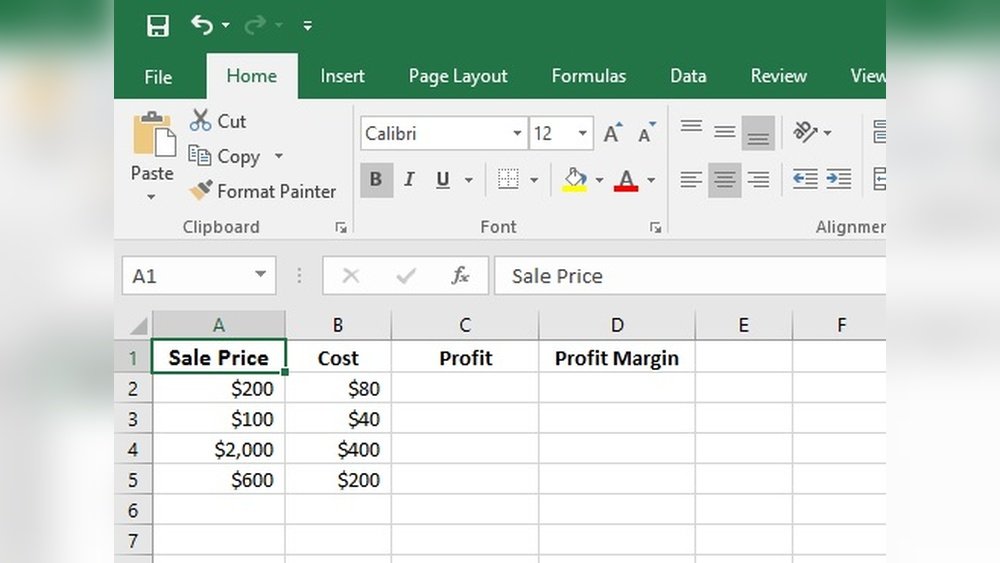
Start by opening a new Excel workbook. Label your columns clearly. This helps you and others understand the data easily.
Creating Column Headers
Begin by naming each column. Use simple titles like “Revenue,” “Cost,” and “Profit Margin.” These headers guide where to input data. They also help Excel recognize what each number means.
Entering Sample Data
Input example numbers under the headers. For revenue, put the total sales amount. For cost, enter the total expenses. This sample data helps test if your formulas work correctly.
Formatting Cells For Clarity
Format your cells for currency. Select the columns with money values. Choose the currency format from Excel’s toolbar. This makes your sheet easy to read and professional.
Entering Revenue And Cost Data
Entering revenue and cost data correctly is the first step in calculating profit margin in Excel. The accuracy of your data affects the final result. Excel makes it easy to organize and work with numbers.
Start by opening a new Excel sheet. Label two columns clearly: one for revenue and one for costs. This helps avoid confusion later. Each row will represent a different item or period.
Set Up Revenue Data
In the revenue column, enter the total sales or income for each item. Use numbers only, no symbols or letters. Keep the data consistent, such as monthly sales or individual product sales.
For example, cell A2 might have “Product A” and cell B2 the sales amount like “5000”. This method makes data easy to read and use in calculations.
Input Cost Data
Next, add the costs related to each revenue entry in the cost column. Costs include expenses like materials, labor, or shipping. Use the same rows as the revenue data for matching.
For instance, if product A sold for 5000, enter its cost in the adjacent cell, such as “3000” in C2. This alignment keeps data organized for formulas.
Check Data Accuracy
Review the numbers to avoid errors that affect profit margin. Double-check each entry for typos or misplaced decimals. Correct data ensures reliable profit margin results.
Use Excel’s formatting tools to highlight revenue and cost columns. Clear visuals help spot mistakes quickly before moving to calculations.
Using Formulas For Profit Margin
Using formulas for profit margin in Excel makes the process fast and clear. Excel helps you do the math quickly and avoid errors. Formulas let you calculate profit margin from your sales and cost data automatically.
You only need to enter the right formula once. Excel will then show the profit margin for each item or sale. This method works well for small or large sets of data.
What Is The Profit Margin Formula In Excel?
The basic profit margin formula is simple. Subtract cost from sales, then divide by sales. Multiply the result by 100 to get a percentage.
In Excel, the formula looks like this: =(Sales - Cost) / Sales 100. Replace “Sales” and “Cost” with the correct cell names.
How To Enter The Formula In Excel
Click on the cell where you want the profit margin. Type the formula starting with an equals sign (=). Use cell references like = (B2 - C2) / B2 100.
Press Enter. Excel calculates the profit margin for that row. You can drag the fill handle down to copy the formula for other rows.
Formatting Profit Margin As A Percentage
After calculating, format the cells to show percentages. Select the cells with your profit margin. Go to the Home tab and click the Percent Style button.
This changes the number to a percent, making it easier to read. You can also set decimal places for more accuracy.
Formatting Results In Excel
Formatting results in Excel makes your profit margin easy to read. Clear numbers help you see your business health fast. Proper format shows percentages with the right signs. It also makes your data look neat and professional.
Simple steps can change plain numbers into useful insights. Use Excel tools to show decimals, add percent signs, and color code results. These small changes improve your report and save time.
Applying Percentage Format
Select the cells with your profit margin results. Click the “Home” tab on the ribbon. Find the “Number” group and click the percent (%) icon. Excel converts your decimal numbers into percentages automatically.
You can increase or decrease decimal places. Use the buttons next to the percent icon to do this. Two decimals usually work best for profit margins.
Using Conditional Formatting
Highlight profit margins to spot good or bad values quickly. Select the profit margin cells. Go to “Home” and choose “Conditional Formatting.” Pick “Color Scales” or “Data Bars” for easy visuals.
Colors help you see high and low margins at a glance. Red can mark low profit margins, green for high ones. This makes your data easier to understand.
Custom Number Formatting
For more control, use custom number formats. Right-click the cell and select “Format Cells.” Go to the “Number” tab and choose “Custom.” Enter formats like 0.00% or 0% to show decimals or whole numbers.
You can add text to your numbers too. For example, “Profit: 25%” shows clear labels. This helps anyone reading your sheet understand the results faster.
Common Errors And Fixes
Calculating profit margin in Excel is easy with the right formula. Still, common errors can cause wrong results. These mistakes often confuse users and waste time. Knowing how to spot and fix these errors helps keep your data accurate.
Errors happen due to wrong cell references, formula mistakes, or data entry issues. Fixing them quickly improves your Excel skills and saves effort. Below are common errors and simple fixes to help you.
Incorrect Cell References
Using wrong cells in your formula is a frequent mistake. For example, referencing the total cost instead of sales affects the margin result. Check your formula carefully. Use absolute or relative references properly to avoid errors.
Dividing By Zero
Dividing by zero causes an error in Excel. This happens if the sales value is zero or empty. Always check if sales data exists before calculating. Use an IF statement to prevent division by zero errors.
Text Instead Of Numbers
Excel cannot calculate profit margin if numbers are stored as text. This leads to wrong or no results. Convert text to numbers by using the VALUE function or changing cell format to number.
Missing Data
Empty cells in sales or cost data cause wrong margin calculations. Ensure all required cells have values. Use data validation to avoid missing inputs. Fill blanks with zero if needed.
Wrong Formula Structure
The profit margin formula is (Sales – Cost) / Sales. Using a different order or missing parentheses changes the result. Double-check the formula syntax. Correct structure ensures accurate calculations every time.
Frequently Asked Questions
How Do I Calculate Profit Margin In Excel?
To calculate profit margin, subtract cost from revenue, then divide by revenue. Use the formula: =(Revenue – Cost)/Revenue. Format the result as a percentage to display the profit margin clearly.
What Excel Formula Shows Gross Profit Margin?
The formula for gross profit margin is =(Gross Profit/Revenue). Gross Profit equals Revenue minus Cost of Goods Sold. Format the cell as a percentage for easy reading.
Can Excel Calculate Profit Margin For Multiple Products?
Yes, Excel can calculate profit margins for many products. Use formulas in columns for revenue and cost, then apply =(Revenue-Cost)/Revenue per row. Copy the formula down to calculate margins for all products automatically.
How To Format Profit Margin As A Percentage In Excel?
Select the cell with the profit margin formula. Click the “Percent Style” button in the Home tab. Adjust decimal places as needed for clarity and presentation.
Conclusion
Calculating profit margin in Excel is simple and clear. Just enter your numbers and use basic formulas. This helps you see how much money your business makes. You can compare profits easily and make smart decisions. Practice these steps to get comfortable with Excel.
Soon, you will check your margins fast and without stress. Understanding profit margins boosts your business knowledge. Keep using Excel to track and improve your earnings. It saves time and shows your progress clearly. Profit margin calculation becomes a useful tool for every business.

About the Author
Oliver K.G.
Oliver K.G. has 8+ years in pricing strategy and has helped 200+ Amazon FBA sellers, dropshippers, and small business owners optimise their profit margins. He built BizMargin to make gross margin and pricing calculations instant and free. He writes on pricing strategy, gross margin optimisation, and profitability for e-commerce and retail businesses.